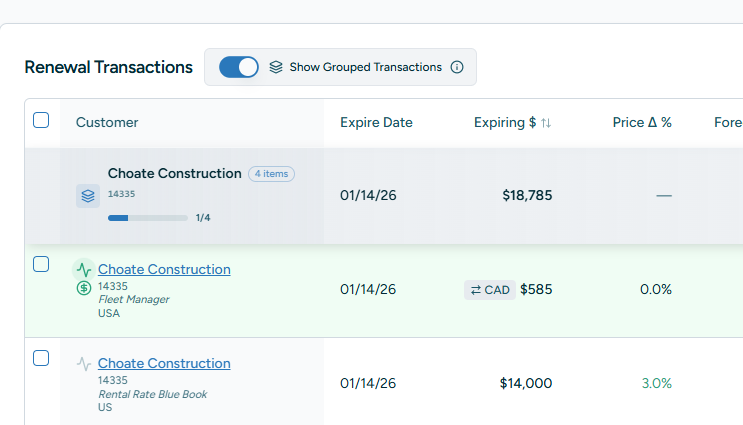
Grouped Transaction View
Stop scrolling through fragmented line items. The new grouped view consolidates transactions by customer and expiration date into collapsible summary rows — complete with aggregated totals for Expiring $, Forecast $, and Completed $, a progress bar, and group-level comments.
Summary rows stick as you scroll, showing customer number, aggregated financials, and completion status at a glance. Toggle it on or off — your preference is saved across sessions. When active, only multi-transaction groups are shown, so singleton records stay out of the way.
- Sticky summary headers with customer number & progress bar
- Aggregated Expiring $, Forecast $, and Completed $ across the group
- Group-level comments separate from individual transactions
- Preference persisted per user — toggle once, stays set
Upsell Descriptions
When a renewal includes an upsell, you now have room to explain why. Record context like seat increases, new product add-ons, or pricing tier upgrades directly on the transaction.
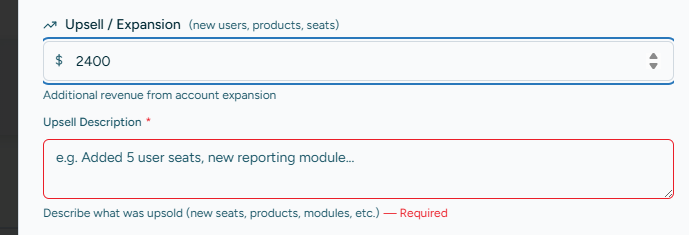
The upsell description field appears contextually in the Complete Renewal drawer whenever an upsell amount is present. In the transactions table, a subtle ↗ icon next to the Completed $ value reveals the description on hover — so your team always knows the story behind the numbers.
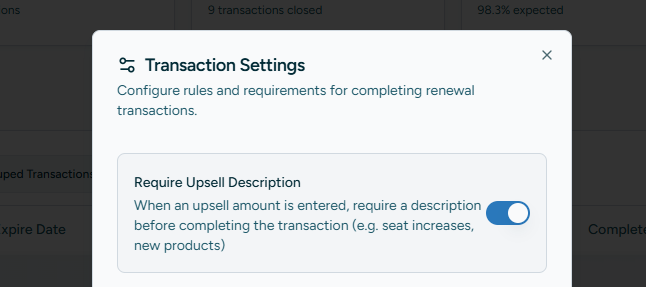
💡 Optional enforcement Want to require it? Enable “Require Upsell Description” in Transaction Settings. When active, the Save button stays disabled until a description is provided for any non-zero upsell — perfect for teams that need audit-ready records.
Transaction Comments
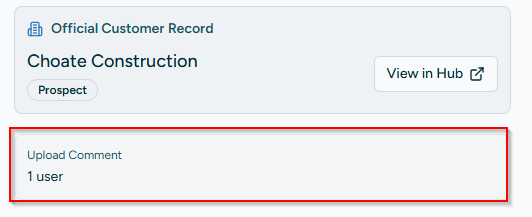
Bring additional context from your source data into every renewal. Transaction comments — like user counts, license tiers, or subscription notes — now travel with the record.
📋 How it works Comments are populated via CSV import and displayed as read-only in the Transaction Detail Modal under “Upload Comment.” This field is completely optional — if your CSV doesn’t include a comment column, nothing changes. When present, it gives reps instant context without switching tools.
Example: “48 users — Enterprise tier, annual billing” or “Includes 3 add-on modules”
Invoice Status Tracking
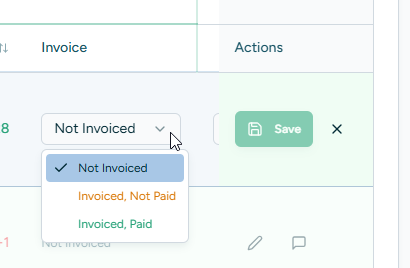
Close the loop between renewal completion and payment collection. A new color-coded invoice column tracks each completed transaction through three stages:
| Status | Color | Description |
|---|---|---|
| Not Invoiced | Gray | Default state |
| Invoiced, Not Paid | Amber | Sent to customer |
| Invoiced, Paid | Green | Payment received |
⚙️ Opt-in per account This feature is off by default. Enable it in Transaction Settings to add the Invoice column to your completed renewals. Once enabled, the status is filterable, included in CSV exports, and visible in the Transaction Detail Modal. Status changes are restricted to edit mode to prevent accidental updates.