
Why Targets?
Previously, managing prospect and target company data meant juggling multiple tabs and navigating through layers of configuration. Targets strips all of that away, giving you a single-view interface purpose-built for company intelligence.
What’s Included
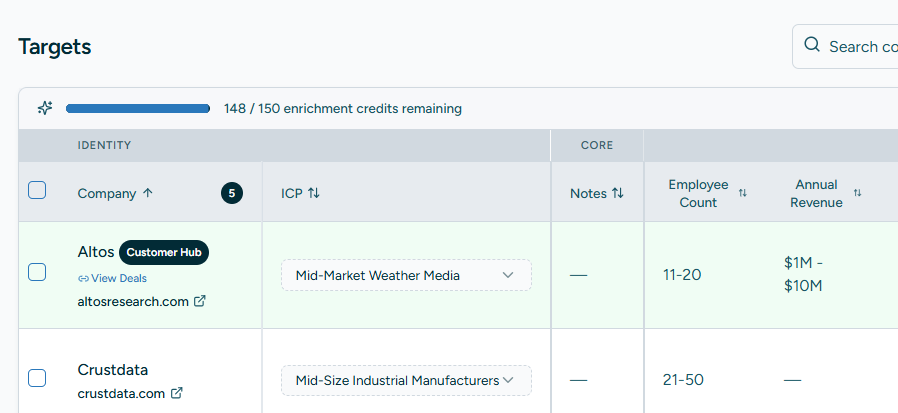
Streamlined Company View No more tabbed navigation — Targets replaces the old multi-tab layout with a clean, single-view design. The record count updates dynamically based on your active filters, displayed as a badge right in the column header.
Smart Table with Grouped Headers The table organizes your data into clear column groups — Identity, Custom, Core, Enriched Data, Technographic, and Website Signals — so you can scan and compare companies at a glance.
Sticky Identity Column The company name stays pinned as you scroll horizontally through dozens of data points. No more losing track of which row you’re looking at.
Promoted Company Tracking Companies that have been promoted into your active pipeline are highlighted with a green row, making it instantly clear which targets have moved forward. Use the “Hide Promoted” toggle to focus on what’s left.
Header-Level Actions CSV Import, CSV Export, Column Management, and Assignment Rules are all accessible via icon buttons directly in the header — no settings menus, no extra clicks.
Enrichment Credit Requests Need more data? Request enrichment credits directly from the Targets screen without leaving your workflow.
Who Gets Access
Targets is available to Head of Business and Head of Sales personas by default. Account admins can adjust access through the standard persona and screen configuration.
Getting Started
Targets is live now — look for it in the Sales section of your sidebar. If you don’t see it, reach out to your account admin to verify your plan includes the Targets screen.